Editor Overview
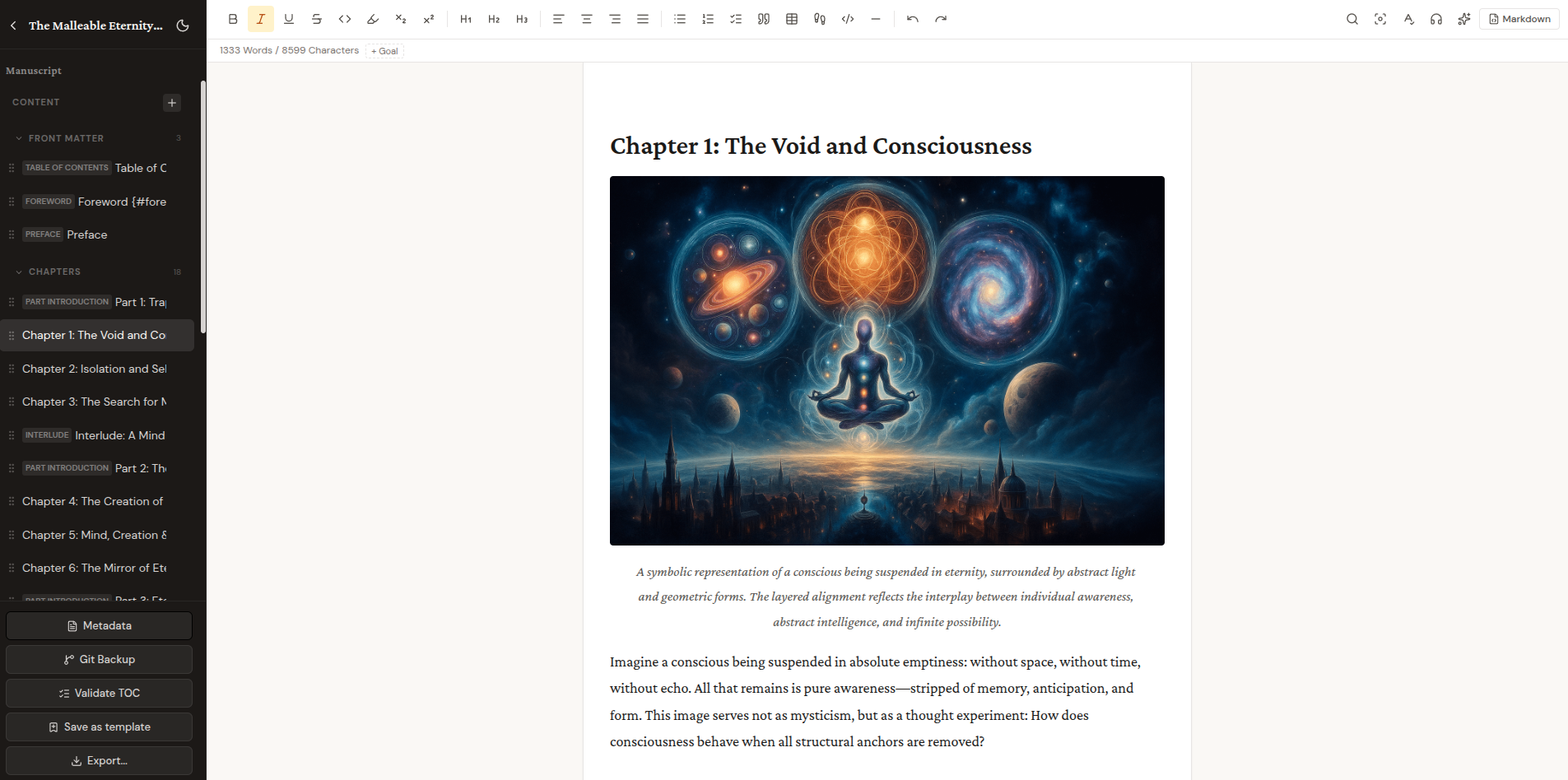
Bibliogon uses TipTap, a ProseMirror-based WYSIWYG editor. The toolbar provides 24 buttons for formatting (bold, italic, headings, lists, images, tables, footnotes, etc.). Chapters are managed in the sidebar on the left, where you can add, reorder (drag-and-drop), and delete chapters.
The editor supports two modes: WYSIWYG (visual) and Markdown (raw text). Content is stored internally as TipTap JSON and converted automatically when switching modes. All changes are saved automatically with debounce.
Keywords in the metadata tab
In Metadata > Marketing you maintain keywords for the book. These land in the Amazon KDP metadata on export and help readers find the book.
Adding: type a keyword into the input field and press Enter. Commas are rejected as separators because they would break the export - each keyword is its own entry. Surrounding whitespace is trimmed automatically, duplicates are rejected case-insensitively.
Editing: double-click on a chip to turn it into an input. Enter commits the change, Escape cancels, clicking outside also commits. Validation failures (empty, too long, contains a comma, duplicate) keep the edit mode open with a red border so you can correct it in place.
Delete and undo: the small X on the right of each chip removes the entry. A bottom-right toast shows an Undo button for five seconds that restores the keyword at its original position, not at the end of the list.
Reordering: drag-and-drop by the grip handle (the small dots on the left of each chip).
Recommendation and hard limit: Amazon KDP recommends a maximum of 7 keywords per book. As soon as you add the eighth entry the counter turns warning-colored and a hint explains that other platforms may allow more - you are not blocked. At 50 keywords the input field is hard-disabled; that is the absolute upper bound as an abuse guard. Individual keywords are capped at 50 characters each.
Persistence: keyword changes are only written to the database when you click the global "Save" button in the metadata tab. Leaving the tab without saving loses the changes.
HTML preview in the Marketing tab
Three marketing fields accept HTML and have a preview toggle: Book description (HTML for Amazon), Back cover description, and Author bio (back cover). The editable textarea is the default state. The preview button at the top-right of the field switches between edit mode and a rendered HTML preview, so you can see how your text will look with paragraphs, lists, bold passages, and similar elements without starting an export. The preview renders safely: dangerous HTML (e.g. scripts) is stripped before display.