Getting Started
Prefer a click-and-run install? The desktop launcher for Windows, macOS, and Linux is documented under Installation. This page covers the terminal-based path plus the post-install orientation.
Installation
Bibliogon runs as a set of Docker containers on your own machine. Your books, settings, and exports stay local; nothing is uploaded to a service.
Prerequisites
You need Docker installed and running before you can start Bibliogon. Docker Desktop (Windows, macOS) or Docker Engine with Compose (Linux) both work.
Quick install (recommended)
The one-line installer downloads Bibliogon to ~/bibliogon, builds the Docker images, and starts the app.
curl -fsSL https://raw.githubusercontent.com/astrapi69/bibliogon/main/install.sh | bash
When the installer finishes, open http://localhost:7880 in your browser.
Manual install
If you prefer to clone the repository yourself:
git clone https://github.com/astrapi69/bibliogon.git
cd bibliogon
./start.sh
start.sh builds the images on first run, then launches the same Docker stack the one-liner uses. The app is reachable at http://localhost:7880.
Running Bibliogon
Once installed, Bibliogon is controlled with two scripts in the install directory.
| Action | Command |
|---|---|
| Stop | cd ~/bibliogon && ./stop.sh |
| Start | cd ~/bibliogon && ./start.sh |
| Restart | ./stop.sh && ./start.sh |
Stopping the app keeps your data on disk; starting it again brings everything back as it was.
Uninstalling
To remove Bibliogon and all local data:
cd ~/bibliogon && ./stop.sh
cd ~ && rm -rf ~/bibliogon
This stops the containers and deletes the install directory, including the SQLite database, uploaded assets, and any exports stored under ~/bibliogon. Make a backup first if you want to keep your books (Dashboard > Backup).
Optional: PDF export with Pandoc
EPUB, Word, HTML, and Markdown exports work out of the box. PDF export needs Pandoc installed inside the Docker container; it is bundled with the default image, so most users do not need to install anything extra. If you build your own image without Pandoc, PDF export will fail with a clear error message in the export dialog.
For developers
Working on Bibliogon itself uses a different setup based on make install (Poetry + npm + plugins) and make dev (FastAPI on port 8000, Vite on port 5173). The make prod target runs the same Docker stack as ./start.sh. See the README and CLAUDE.md for the full development guide.
First start
When you open http://localhost:7880 for the first time the database is empty. Bibliogon uses SQLite as a local database; all data lives on your machine, no external server is required. From Settings you can change language and theme. Six themes (Warm Literary, Cool Modern, Nord, Classic, Studio, Notebook) are available, each with light and dark variants - see the Themes page for details.
Dashboard: filter, sort, trash
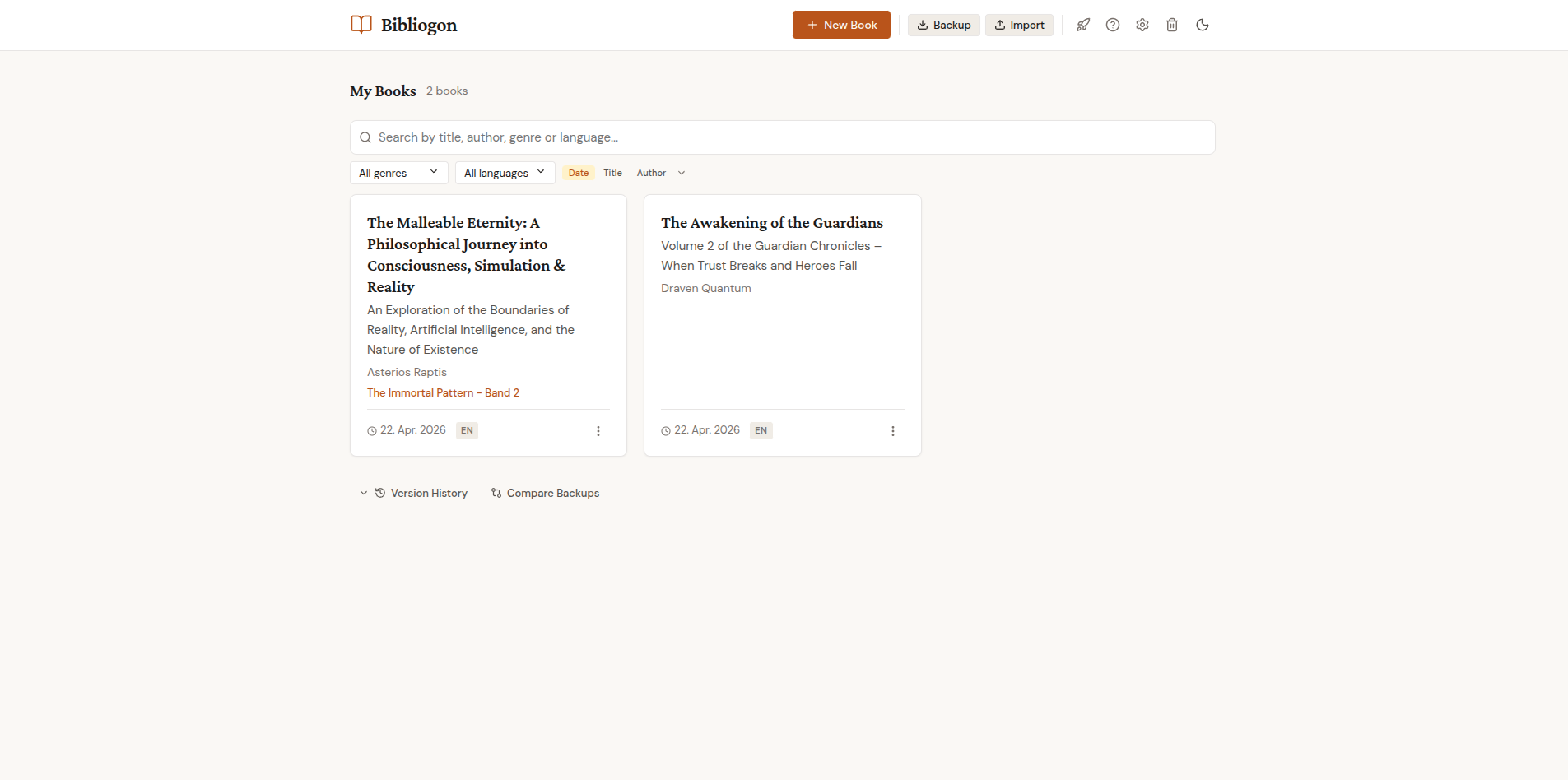
As your collection grows, the Dashboard offers search, filter, and sort controls above the book grid. You can search by title, author, genre, or language, filter by genre and language, and sort by date, title, or author in either direction.
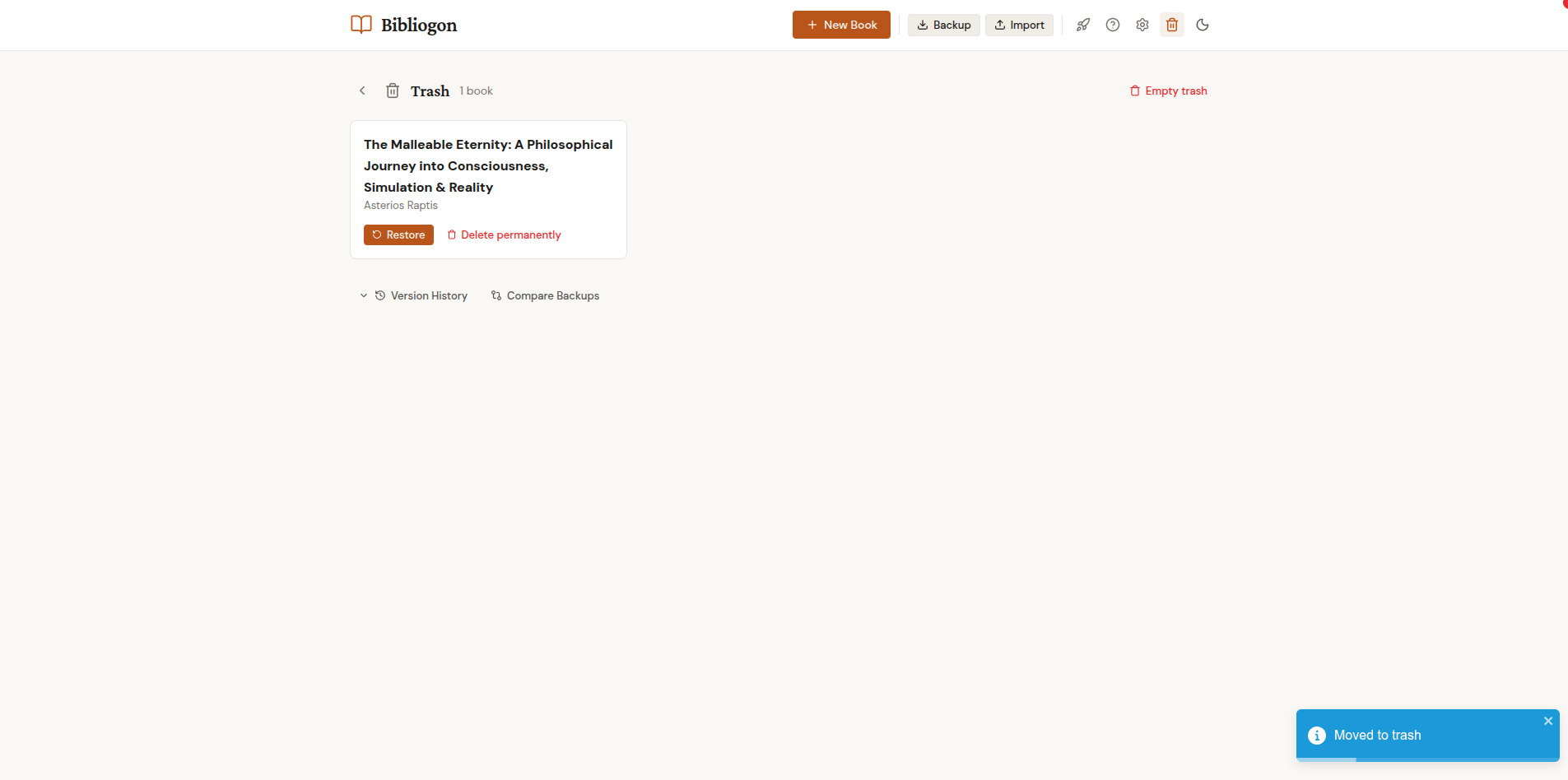
Deleted books go to the Trash (soft delete). The Trash view lists them with three actions: Restore puts a book back in the library, Delete permanently removes the book and its files immediately, Empty trash clears everything at once. Books in the Trash are automatically deleted after 90 days; the timer can be configured in Settings.
Creating your first book
On the Dashboard, click New Book. A two-step dialog opens: in the first step you enter title and author; in the second (expandable via "More details") you can fill in optional fields such as genre, subtitle, language, and series. Only title and author are required.
After creating the book you are sent straight to the editor. The sidebar lets you add chapters. Each chapter has a title and a chapter type (e.g. Chapter, Foreword, Afterword, Glossary). Chapter order is changeable by drag-and-drop in the sidebar. Just start writing - the editor saves your changes automatically.
Importing existing projects
If you already have a book project in write-book-template format, you can import it directly. On the Dashboard, click Import and select the corresponding ZIP file. Bibliogon reads the chapter structure, metadata (title, author, ISBN, language) and assets (images, cover) automatically and creates the book with everything intact.
Backups can be restored the same way. A backup (.bgb file) contains the entire state of all books. From the Dashboard you export the current state via Backup and restore it via Restore.