Editor display settings
The cog icon at the right end of the editor toolbar opens a small popover that customises how the editor renders on this device.
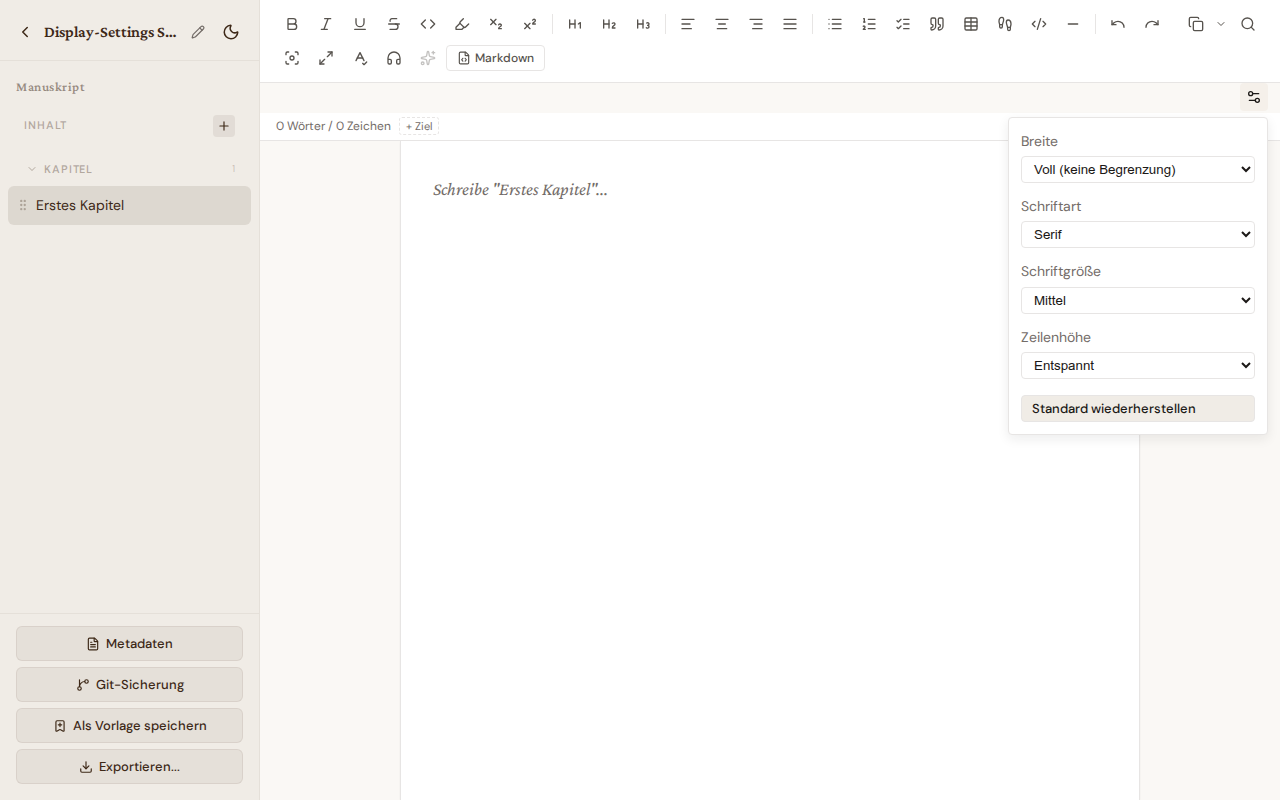
Options
- Width — Full (no limit), 900, 780, or 680 pixels. Narrower columns are easier to read on large monitors.
- Font family — Serif or sans-serif.
- Font size — Small, medium, or large.
- Line height — Compact, normal, or relaxed.
Persistence
The settings are stored in localStorage under the key bibliogon-editor-display-settings. They apply per browser and device, not per account or per book — a choice on your laptop does not affect your tablet. Restore defaults resets all four values to the built-in default.
The settings apply to both the book editor and the article editor — both share the same underlying editor.
Fullscreen mode
The page editors (picture-book, comic-book) and the Storyboard view carry a fullscreen toggle in the header — the expand icon among the other header controls. It uses the browser's native fullscreen so the editing canvas fills the whole screen with no app chrome; press the icon again, Esc, or F11 to exit. Fullscreen is handy when arranging comic panels or laying out a collage, where every pixel of canvas helps.
Composition mode (distraction-free)
The book/chapter editor has a Composition mode — the feather icon in the toolbar, or Ctrl+Shift+D. It is the all-in-one distraction-free writing surface:
- The chapter sidebar and the editor toolbar fade away, leaving just your text on a clean paper column over a quiet backdrop.
- Inactive paragraphs dim so the line you are writing stands out (the same dimming as the standalone Focus button).
- Typewriter scrolling keeps the line you are writing vertically centered — the page scrolls under a fixed writing line.
Leave composition mode with the floating Exit button (top-right), Esc, or Ctrl+Shift+D again. It is a per-session mode — reloading the page returns you to the normal editor.
Composition mode composes the finer controls rather than replacing them: the standalone Focus button (dimming only) and the browser Fullscreen button stay available, and the paper width follows your editor display Width setting above.
Related
- Word wrap (Alt+Z) — keyboard shortcut for long-line layout in Markdown mode
- Storyboard View — picture-book overview with drag-reorder + annotations
- Settings sidebar — app-wide settings under the sidebar layout