Danger Zone
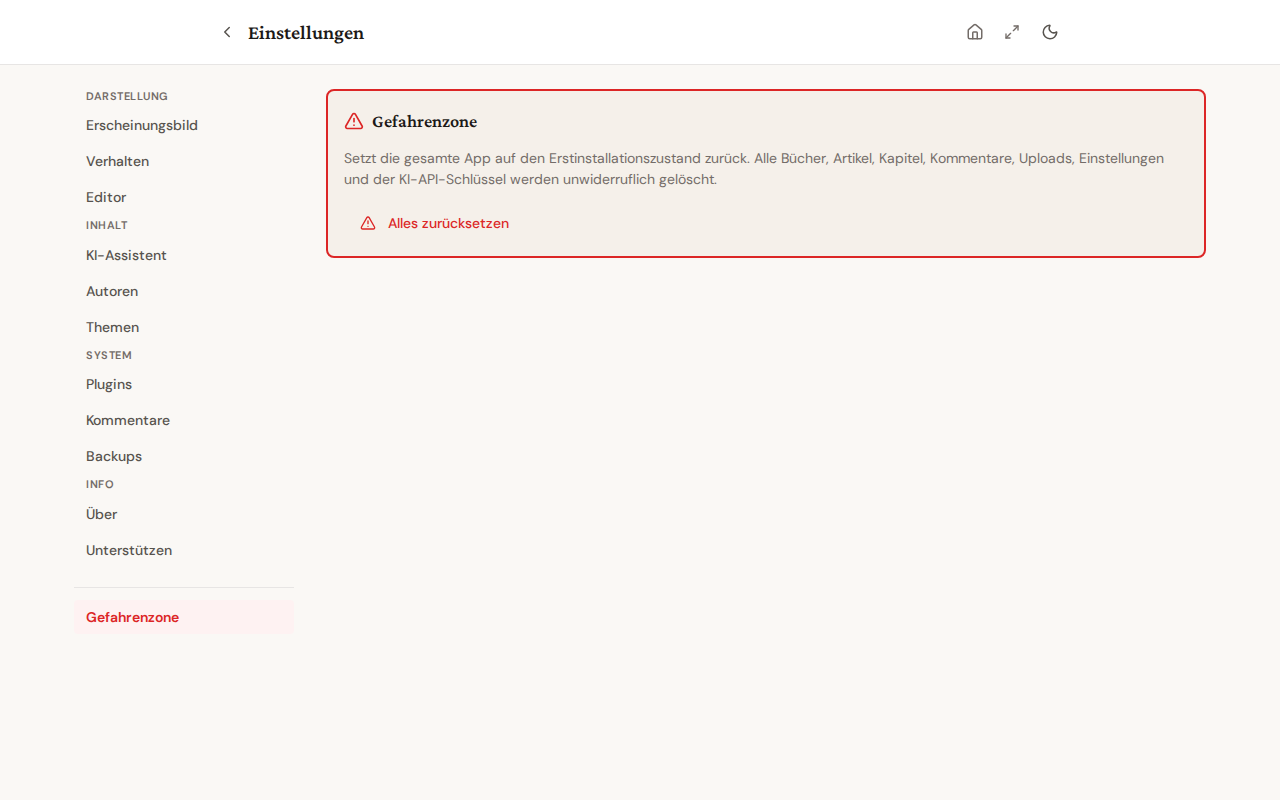
The Danger Zone in Settings lets you reset the entire app to its first-install state. This action is irreversible — make sure to create a backup before executing it.
When do I need this?
- You want to hand Bibliogon to someone else and remove all personal data.
- You want to start the app fresh ("factory reset").
- Plugin or configuration testing left residue you want to clean up.
For deleting individual books or articles, this is not the right tool — the normal delete actions plus the trash (90-day recovery window) are the right path.
What gets deleted?
Clicking Delete permanently irreversibly removes:
- All books and chapters (including Kindle Direct Publishing state and ARC reviewers)
- All articles and comments
- All uploaded images and other assets (covers, figures)
- All comic-book pages, panels and speech bubbles
- All picture-book pages
- All templates and Authors-Database entries (the bundled built-in templates get re-seeded)
- All settings and preferences (app language, theme, plugin configs)
- The AI API key
- Backup history
- User-installed plugins (ZIP installs)
- All unsaved editor drafts in the browser
- All running background jobs (audiobook generation, Medium import, AI bulk-fill)
What stays?
- The Bibliogon app itself (backend + frontend)
- The launcher install state (version, install path)
- The bundled built-in templates (re-seeded automatically after the reset)
- The data directory itself (only its contents are wiped)
Steps
- Open Settings → Danger Zone (the last tab).
- Click Reset Everything.
- The dialog shows the full list of what will be deleted, plus a prominently placed Create backup button.
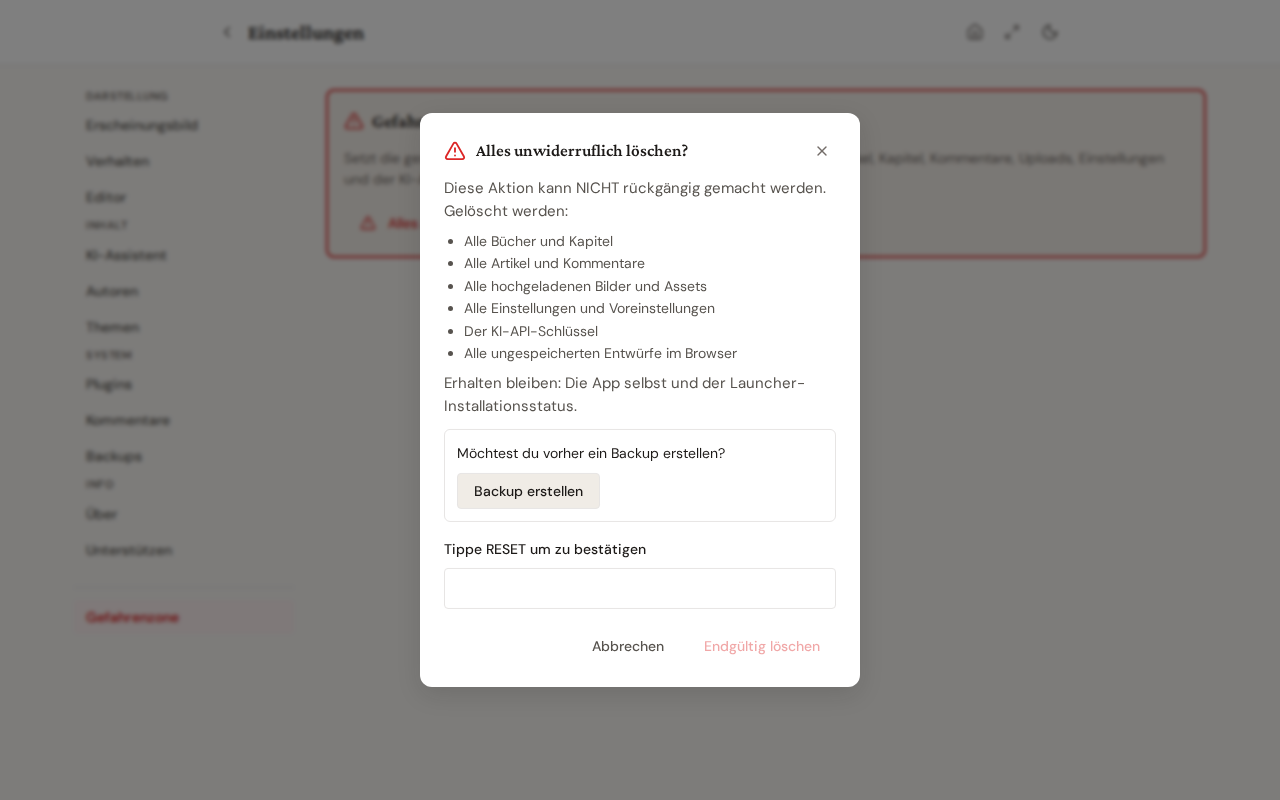 4. Optional: clicking Create backup downloads a
 .bgb backup of all books and articles to your browser's default download directory. The dialog stays open.
5. Type RESET (uppercase) into the text field at the bottom of the dialog. Only then does the red Delete permanently button become active.
6. Click Delete permanently.
After the reset the app automatically redirects to the Dashboard and behaves like a fresh first install: empty dashboards, no AI key configured, theme at default.
Safety mechanisms
The reset is deliberately gated by multiple layers so it cannot fire by accident:
- Three clicks: Reset button in Danger Zone → open dialog → Delete permanently.
- Word confirmation: the exact word "RESET" (uppercase) must be typed. Lowercase or typos keep the destructive button disabled.
- HMAC token: opening the dialog requests a 5-minute token from the server in the background. The token must be sent with the RESET word; an external page or accidental second request has no effect without it.
- Backup offer: the backup affordance is rendered prominently before the destructive button enables.
Failure cases
- If the server is unreachable while the reset is being prepared, the Delete permanently button stays disabled and an error notification appears.
- If the reset itself fails (backend error), the dialog stays open and a fresh token is requested automatically. You can re-type the RESET word and try again.